Poker Mavens - Player Interface
The Poker Mavens player module is an HTML5 web app that is automatically served to your web browser when you connect to a Poker Mavens server. This connection can come from the server directory at www.PokerMavens.net or via a direct link from an email message or another web site. This means you do not have to install any new software to play. The web app connects back to the server on a web socket port for two-way communication. All major browsers now support this capability including Internet Explorer 10, FireFox 11, Chrome 14, Safari 6, and Opera 12.1. On tablets and smart phones with 640 x 480 resolutions or higher, the client module will work with iOS Safari 6 for iPhones and iPads and Chrome and FireFox for Android.
The client module can be configured for two different interfaces: Desktop and Mobile. Devices with touch capability are automatically set to Mobile mode while non-touch devices are set to Desktop mode. However, the user can override this configuration from the Lobby menu if they choose. Both modes are touch and mouse compatible. The Desktop interface consists of a resizable/draggable lobby window with independent table windows (all within the canvas of the browser) that are also resizable/draggable. In the Mobile interface, the lobby is fixed to full screen mode and tables are loaded into one of the lobby tabs. Only one table at a time is visible in Mobile mode but the user can switch to other tables using left and right navigation arrows.
♣ Poker Lobby
Once the client module is loaded, the first thing you will see is the lobby window. This window is not a real operating system window but is instead a graphical representation produced by the HTML5 code. It can be moved and closed like a real window but is confined to the interior area of your web browser. Note that you may want to turn off the various toolbars and use the browser's full screen mode (typically by pressing the F11 key most browsers) to maximize the space available for the various windows available in the game.
♣ Lobby Menu
The menu at the top of the Lobby window contains the following commands:
Lobby
Logins - This selects the Logins page in the Mobile interface. Desktop users can just click on the Logins tab directly to show the list of logins and the lobby chat.
Ring Games - This selects the Ring Games page in the Mobile interface. Desktop users can just click on the Ring Games tab directly to show the list of ring games available.
Tournaments - This selects the Tournaments page in the Mobile interface. Desktop users can just click on the Tournaments tab directly to show the list of tournaments available.
Sit & Go's - This selects the Sit & Go's page (if enabled) in the Mobile interface. Desktop users can just click on the Sit & Go's tab directly to show the list of sit & go's available.
Open Tables - This selects the Open Tables page in the Mobile interface. It does not appear in Desktop mode, where tables are in independent windows.
Default window size - This command returns the lobby window to its default size (Desktop mode only). In Desktop mode, the lobby window can be resized by dragging the bottom right corner.
Logout / Exit - This command will log the user out, disconnect the client from the server, and close all of its windows.
Account
Login/Logout - This is equivalent to the Login/Logout button on the Logins tab and displays a Login dialog.
Create - This function displays a dialog so that first time visitors can create an account on the site. It is the equivalent of the "Create New Account" button on the Login dialog.
Change info - This function allows you to change any of the editable fields for your account, such as password, avatar, email address, etc.
Show balance - This function displays your chip balance and is equivalent to the "Account Balance" button on the Logins tab.
Show tickets - Displays a list of your ticket tokens, typically won in satellite tournaments.
Show permissions - This function displays your permission tokens, used for access to restricted ring tables, tournaments, and chat.
Transfer chips - This function allows you to transfer chips from your account to another player's account. This function has to be enabled by the site administrator.
Request more chips - This function allows you to receive more chips if your balance has fallen below the default starting balance. This function has to be enabled by the site administrator and may have a limitation on how often the request can be made.
Options
Arrange windows - Displays a dialog that allows the player to arrange the open tables into a cascading or tiled pattern.
Display settings - Displays a dialog that allows the player to choose between a desktop or mobile interface, change the default font size, choose a number display format, and configure the chat block feature.
Table settings - Displays a dialog of various table settings that can be turned on or off: Bring active table to front, Display hand helper, Auto muck, Four-color deck, Deal cards face down, and Mute dealer chat.
Sound effects - Displays a dialog of sound settings that can be turned on or off plus a master volume control.
Start tournament - Displays a Start Code dialog allowing the current selected tournament to be started remotely (if that option was enabled in the server module).
Player search - Displays the table names where a specified player is seated or in the waiting list. This function can also be called by clicking the "Player Search" button on the Logins tab.
Player notes - Display the list of all player notes, recorded previously on selected opponents.
Help
Contact site administrator - Displays a dialog with links to the site administrator's email and web site.
View site news - Displays a news bulletin provided by the site administrator.
View site FAQ - Displays Frequently-Asked-Questions text provided by the site administrator.
About Poker Mavens - Displays a copyright notice and a link to the Briggs Softworks web site (optional in Gold version).
Table
This menu only appears on the top menu bar in the Mobile interface. It contains the same menu commands described in the Poker Table topic below.
♣ Player Login
As a player, you must login before you can join any poker games or use the chat feature. Clicking the Login button on the Logins tab or selecting Login from the Account menu will display this dialog:

First time visitors can click the "Create New Account" button to create a new account at the site. All fields except "Real Name" are mandatory. Remember that each Poker Mavens server is operated independently so an account created on one site will not be recognized on another.

♣ Logins Tab
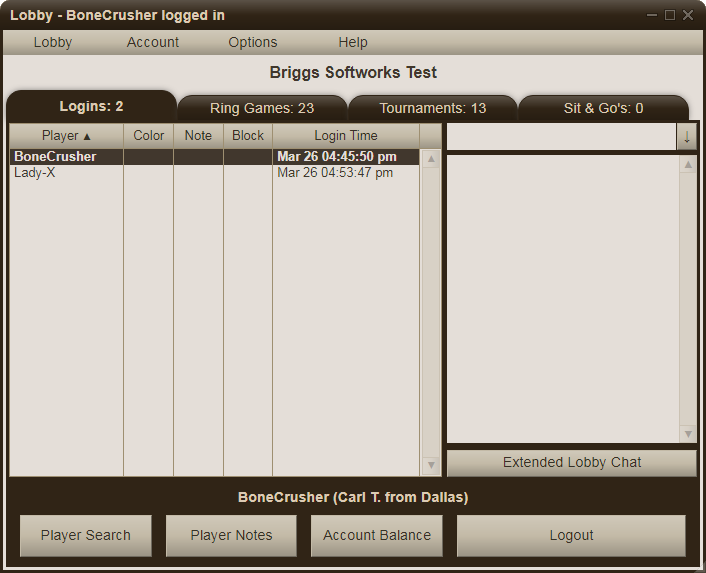
Once logged in, you can see the list of all players currently logged in on the Logins tab:

The chat feature on the Logins tab can be used to talk to other players (assuming they are monitoring this window). Just type in a line of text in the Chat box and then press Enter to submit it. Clicking the "Chat +" button will open a larger chat box to the right of the lobby window. A player can create notes, assign a color, or block the chat of others by selecting their name in the login list and clicking the "Player Notes" button. The chat block also affects chat entered at the poker tables.
You can click the "Account Balance" button to see what your current chip balance is. Each site administrator determines what a new player's starting balance will be.
Click the "Player Search" button to search all the tables for a specific player name. This feature is also available on the Options menu.
♣ Ring Games Tab
The Ring Games tab displays a list of the active ring games currently available at the site (note: only site owners who have the Pro or Gold version of Poker Mavens can put more than one table at a time online). When one is selected, the list of players currently seated there is displayed. Click the "Observe Table" button to observe or join the selected ring game. To join a ring table, the player simply clicks on any empty seat in the table window. If all seats are currently filled, a "Waiting List" button will be enabled in the Lobby window. Clicking it will add your name to the waiting list. Once a seat become available, a popup invitation will be displayed asking you to join the table.

♣ Tournaments Tab
The Tournaments tab displays a list of the active tournaments currently available at the site. Again, only the Pro and Gold version of Poker Mavens supports multiple tournaments or multi-table tournaments. When one is selected, the list of players is displayed if the tournament has started. Click the Register button to join the waiting list for the next tournament. Seats are randomly assigned and no one is seated until the tournament is ready to start. Also, no one can join a tournament after it has started. You can, however, register for the next tournament while waiting for the current one to finish.

Basic information for the selected tournament can be seen by clicking the "Tournament Info" button, including the starting options. A tournament can be started by up to 5 different methods as long as there are at least 2 people registered to play:
- Start at time - if set to a "Yes", the tournament will automatically start at a set time. That time is displayed in the player's local time zone above the Filter button in the lobby window.
- Start when full - if set to "Yes", the tournament will automatically start when all seats have been registered.
- Start now votes - if set to a number, the tournament will start automatically when that number of players have registered and checked the "Start Now" box that will appear below the "Register" button in the lobby window. A registered player who checked this box will have an asterisk next to their name in the waiting list.
- Start with code - if set to "Yes", the tournament can be started by anyone (registered or not) who knows the start code and enters it by selecting "Start tournament" from the Lobby's Options menu.
- Manual start by administrator - this option is always on. The administrator can start any tournament from the server module, remote administration interface, or the application programming interface (API).
♣ Sit & Go's Tab
The Sit & Go's tab displays a list of the active tournaments that have the "Start when full" option set. This tab is only displayed if administrator has the "Sit and Go tab" option enabled. Otherwise, these tournament are displayed in the same tab as the other tournaments.

♣ Poker Table
Each poker table is represented in an independent window that can be moved and resized anywhere inside your web browser. Click and drag the small triangle icon in the lower right corner to resize the window. The table graphic is identical for both ring games and tournaments. Site owners who have the Pro or Gold version of Poker Mavens have the option to replace the background graphic and table logo so those sites may look different than the default table displayed here.

In the upper left corner of the table is a pull-down menu with the following commands:
General info - this menu displays general information about the table in an independent, resizable window. For tournament tables it also includes the payout and blinds schedules.

Statistics - this menu displays some basic statistics including the number of hands you played, flops seen, and pots won.

Hand history - this menu displays a detailed hand history of all the action that has occurred at the table.

Extended chat - this menu displays an extended chat area that allows the chat to be moved from the table to a larger area.

Add more chips - this function applies to ring games and rebuy tournaments. In a ring game, you can add more chips from your account up to the maximum buy-in limit for the particular table. In a rebuy tournament, you can add chips during the rebuy period when your stack is at or below the starting chip count.
Default window size - this command will reset the table back to its default size (desktop mode only).
Refresh table - this command will force the table window to redraw itself. It's typically used if a disconnect causes the display to be out-of-sync with the live action.
Rotate seats - this command allows for a "preferred seat" option and will display a dialog that lets the player rotate the seats clockwise or counterclockwise around the table. The setting does not affect other tables and expires when the table is closed. You can also invoke this function when seated at a table by clicking on another seat (other than your own). Then you will have an additional "Rotate Here" button available.
The four tab windows shown above have a Save button for copying text to a popup window, where it can be copied to the clipboard or saved to a local file. Other global table options are available in the Lobby window under Options | Table Settings.
Click the Leave button in the upper right corner to leave your seat and/or close the table window. In a tournament, the you will be placed in "Sitting Out" mode and will eventually get blinded out if you don't return. In a ring game, you are removed immediately and any chips in your stack is added back to your account.
The Chat area is located in the bottom left corner of the table. Just type in a line of text and press Enter and your name and message will be displayed at the bottom of the scrolling chat box. If your prefer a larger chat box, click the Menu button and then select "Extended chat" as described above.
Whenever it is your turn to act, your name plate will glow with a yellow color and two or three Action Buttons will be displayed in the lower right corner of the table. For Pot Limit and No Limit games, if there is a possibility of betting or raising a variable amount then an edit box and a slider bar will also be displayed for selecting that amount.
Fold to any bet - When you check this box, your hand will be folded when it becomes your turn to act and there is a live bet that has not been called. However, if you have an option to check your bet, then the check will be performed automatically for you. This option is cleared at the end of the hand.
Sit out next hand - Checking this box will put the player in "Sitting Out" mode when the next hand starts. For ring games, that means they will not be dealt any hole cards and the blinds will skip past them. However if they do not return before the amount of time specified in the "Maximum sitout minutes" setting has expired, they will be automatically removed from the table. For tournaments, a player sitting out will continue to get cards and post blinds. They will eventually be blinded out of the tournament if they do not return.
Sit out next blind - Checking this box will put the player in "Sitting Out" mode whenever it is their turn to post a small or big blind. This option is only available in ring games.
Straddle next UTG - Checking this box will cause the player post a straddle bet (equal to twice the big blind) when they are in the "under the gun" position (i.e., right after the big blind position). The straddle is placed preflop with the other blinds and makes the straddle player the last one to act preflop.
Next Move - These Check/Call/Fold boxes will be displayed on the right side of the window when there is action pending at the table but it is not yet the player's turn to act. A player can use these if they know what move they are going to make in advance of their turn.
Folded Cards - Players can see the cards they folded in the current hand by moving the mouse cursor over their name plate (or touching the name plate on a mobile device). They will be displayed in a semi-transparent state.
Player Info - Hovering the mouse (or long tapping on a mobile device) over a player's name plate will also display a tooltip of information regarding that player (location, gender, time bank remaining, notes, etc.). Clicking the name plate will display a popup dialog containing additional functions including player notes (including color and chat block), search, profile display, and a "rotate here" option.
